WinSetupFromUSB - Multiboot USB Creator

Create powerful multiboot USB drives to install Windows, Linux, and essential utilities from a single bootable device

What is WinSetupFromUSB?

Transform any USB flash drive into a powerful multiboot installation tool with WinSetupFromUSB. This free application simplifies the way you deploy operating systems by letting you combine multiple Windows versions, Linux distributions, and utility programs onto one portable device. Whether you're managing computers at work, helping friends with installations, or maintaining your personal systems, this software eliminates the need for stacks of DVDs or multiple USB sticks.

The beauty of WinSetupFromUSB lies in its simplicity. No advanced technical skills are required to get started. The program walks you through each step, from selecting your USB drive to adding your desired operating systems. Behind its clean interface is robust support for different file formats and bootloader configurations, making it work seamlessly with both modern computers and older hardware that many other tools overlook.

What makes this tool stand out is its practical approach to solving real-world problems. System administrators use it to carry their entire toolkit in their pocket. Computer repair technicians rely on it to handle any situation they encounter. Even casual users find it invaluable when they need to reinstall Windows, try out different Linux flavors, or rescue data from a troubled computer. One USB drive becomes your complete solution for OS deployment and system recovery.

Why Choose WinSetupFromUSB

Powerful features that make OS installation simple and efficient

🔄

Always Up to Date

Regular software updates ensure you can work with the newest Windows 11 builds, latest Linux distributions, and modern hardware. The development team actively maintains the tool to keep pace with evolving technology.

⚡

Universal Boot Support

Works perfectly with both traditional BIOS firmware and newer UEFI systems. Whether you're working on a 10-year-old laptop or the latest desktop, your bootable USB will function correctly without compatibility issues.

🎨

Flexible Configuration

Control every aspect of your bootable USB creation. Choose partition layouts, select file systems, customize boot menus, and arrange your operating systems exactly how you want them for maximum efficiency.

💾

Single Drive, Multiple Systems

Pack as many operating systems as your USB capacity allows. Install Windows 7, Windows 10, Ubuntu, and rescue tools all on one drive. Switch between them at boot time with a simple menu selection.

👥

Simple for Everyone

Clean, uncluttered interface removes confusion from the process. Each option is clearly labeled with helpful descriptions. You don't need to be a computer expert to create professional-grade bootable USB drives.

🖥️

Extensive Format Support

Compatible with Windows installation ISOs from XP through Windows 11, popular Linux distributions like Ubuntu, Fedora, and Mint, plus bootable rescue utilities and system diagnostic tools.

Getting Started with WinSetupFromUSB

Starting your journey with WinSetupFromUSB takes just a few minutes. The software is ready to use right after installation, with no complicated setup required:

  • Head to our download section to grab the newest release for your Windows PC
  • The software is 100% free - no trial periods, registration forms, or premium upgrades to worry about
  • Double-click the downloaded file and let the quick installation process complete
  • Open the program and you're ready to start building your multiboot USB immediately

Our download file is compact, virus-free, and has been validated by thousands of users daily. People around the world depend on this tool for their bootable USB needs because it simply works every time.

Download Now
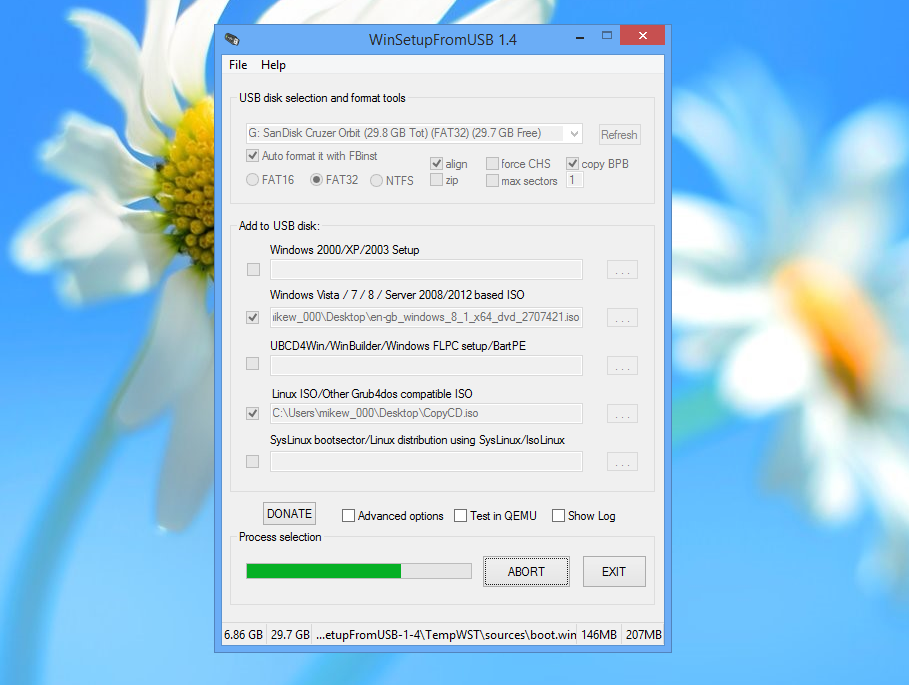
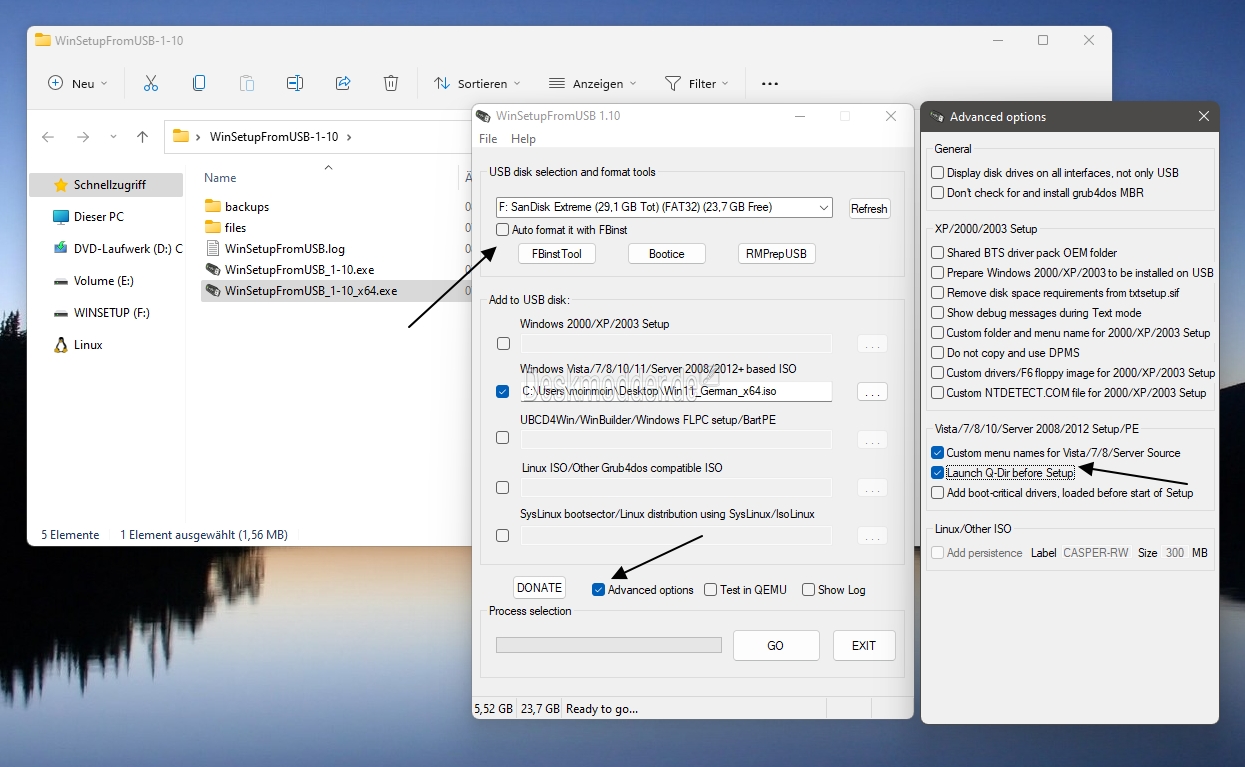
WinSetupFromUSB Download Interface
WinSetupFromUSB Installation Process

Creating Your Multiboot USB Drive

Building a bootable USB with multiple operating systems is surprisingly simple. Here's your step-by-step roadmap from installation to your first working multiboot drive:

  • Get WinSetupFromUSB installed on your Windows computer using our download page
  • Plug in a USB flash drive with at least 8GB space (larger is better for multiple OSes)
  • Start the program and pick your USB device from the list at the top
  • Add your operating system ISO files by clicking the browse buttons for each OS type
  • Adjust partition style and file system options if you know what you need (defaults work great for most people)
  • Hit the "GO" button and confirm you're ready to erase the USB drive
  • Let the software do its magic - grab a coffee while it sets up your bootable drive
  • Remove your USB safely once you see the completion message

That's it! Your USB stick now boots on virtually any computer and gives you a menu to choose which operating system to launch. Expect the whole process to run anywhere from 10 to 30 minutes based on how many and how large your ISO files are.

Real Advantages for Real Users

See how WinSetupFromUSB solves everyday computing challenges

💰

Zero Cost, Maximum Value

Stop wasting money on DVDs that you'll use once and throw away. A single USB drive can be reused hundreds of times, and WinSetupFromUSB costs nothing to download or use. No subscriptions, no premium versions, no hidden fees. You get full functionality without spending a penny, making this the smart choice for your wallet and the environment.

🔧

One Drive Does Everything

Stop juggling multiple USB sticks or hunting for the right installation disc. Put Windows 7 for older machines, Windows 11 for new builds, Ubuntu for Linux projects, and recovery tools all on one portable drive. Tech support becomes effortless when every tool you need fits in your pocket and works on any computer you encounter.

⚡

Lightning-Fast Installations

USB 3.0 flash drives install operating systems far faster than optical discs ever could. What used to take an hour now finishes in 15 minutes. The software itself creates your bootable drive efficiently, so you spend less time waiting and more time actually getting work done.

🎯

Beginner-Friendly Design

You don't need computer science knowledge to use WinSetupFromUSB. The interface shows exactly what you need to click, in the order you need to click it. Helpful labels explain each option in plain language. First-time users successfully create bootable drives without reading manuals or watching tutorial videos.

🛡️

Proven Stability

Years of development and real-world testing mean you can count on WinSetupFromUSB to work correctly. The software handles errors gracefully, guides you through fixes when needed, and creates bootable drives that actually boot the first time. Millions of successful installations prove this tool gets the job done reliably.

🌍

Universal Operating System Support

From Windows XP to Windows 11, from Ubuntu to Fedora, from system rescue tools to hardware diagnostics - if it comes as an ISO file, WinSetupFromUSB can put it on your USB drive. This comprehensive compatibility means one tool handles all your operating system deployment needs, whether you work with current software or maintain older systems.

Frequently Asked Questions

Find answers to common questions about WinSetupFromUSB

What is WinSetupFromUSB? ▼

It's a Windows application that transforms regular USB flash drives into multiboot installation devices. You can load several operating systems onto one USB stick and choose which one to install when you boot from it. The software handles all the technical details of making the drive bootable.

Is WinSetupFromUSB free to use? ▼

Absolutely. You pay nothing to download it, nothing to install it, and nothing to use it. Every feature works without limitations, and you won't encounter upgrade prompts or restricted functionality. It's genuinely free software.

What operating systems can I install using WinSetupFromUSB? ▼

The software works with all Windows versions from XP through Windows 11, popular Linux flavors such as Ubuntu, Mint, Fedora, and Debian, plus system rescue disks and diagnostic utilities. If you have an ISO file of an operating system, chances are excellent that WinSetupFromUSB can add it to your USB drive.

Can WinSetupFromUSB create a bootable USB for Windows 10? ▼

Yes, Windows 10 is fully supported, along with Windows 11 and older versions. You can even combine different Windows editions on the same USB - helpful when you work with various computers running different Windows versions.

Does WinSetupFromUSB support UEFI and Legacy BIOS modes? ▼

Yes, your created USB drives will boot on computers using either traditional BIOS or modern UEFI firmware. This dual compatibility means your bootable drive works on everything from vintage laptops to brand-new gaming rigs.

How do I download WinSetupFromUSB? ▼

Head over to our download page where you'll find the current version ready to grab. Click the download button, save the file to your computer, then run it to install. The whole process takes just a couple of minutes.

What are the system requirements for using WinSetupFromUSB? ▼

You need a computer running Windows 7 or newer (Windows 8, 10, or 11 all work fine), at least 512MB of memory, and a USB flash drive of 8GB or larger depending on how many operating systems you want to include.

Can I add multiple operating systems to a single USB drive? ▼

That's exactly what makes this tool special. Load up your USB with Windows 7, Windows 10, Ubuntu, and recovery utilities all at once. When you boot from the drive, a menu lets you pick which one to run. It's like carrying an entire computer repair shop in your pocket.

What size USB drive do I need? ▼

It depends on your plans. A single Windows ISO fits comfortably on an 8GB drive. Want to pack in multiple Windows versions plus some Linux distributions? Go for 16GB or 32GB. Bigger drives give you more flexibility to build a complete toolkit.

Is WinSetupFromUSB safe to use? ▼

The software is completely safe when downloaded from our official site. Millions of people use it daily without issues. The program only modifies the USB drive you select - it doesn't touch your computer's hard drive or collect personal information.

Start Building Your Ultimate USB Toolkit Today

Get WinSetupFromUSB now and turn any USB drive into a powerful multiboot solution. Completely free, forever.

Download WinSetupFromUSB Free